
Guide
Publish websites from Claude with the MCP connector
Last updated: 26 June 2026
MakeMySiteLive runs a hosted MCP (Model Context Protocol) server, so Claude can publish and manage your sites for you — create a site, deploy a ZIP, publish a single-file microsite, roll back a version, or set a password, all from a chat. There is nothing to install. Add one connector URL, sign in once, and Claude works within your own plan. The whole setup takes under a minute.
What you’ll need
- ✓A MakeMySiteLive account (the first full site is free, and microsites are unlimited — no credit card).
- ✓Claude on a plan that supports custom connectors (claude.ai or the Claude desktop app). Other MCP clients work the same way.
MCP connector URL
https://mcp.makemysitelive.com/mcpSteps
- 1
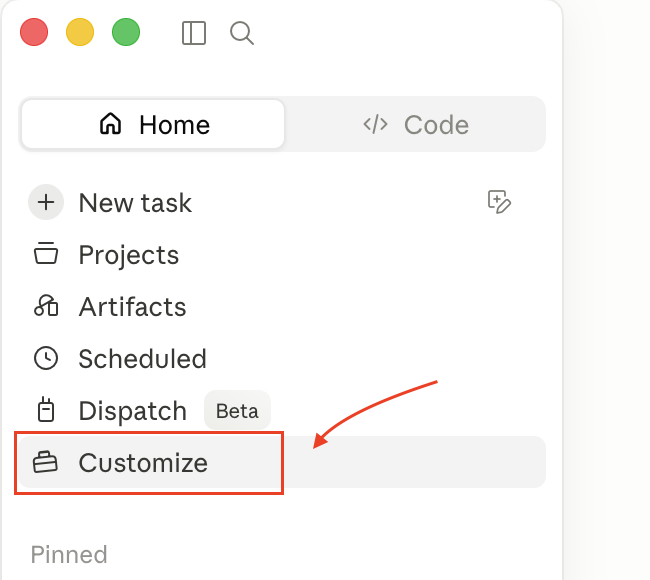
Open Customize → Connectors in Claude
In the Claude sidebar, click Customize, then open the Connectors tab. This is where Claude’s tools and integrations live.
- 2
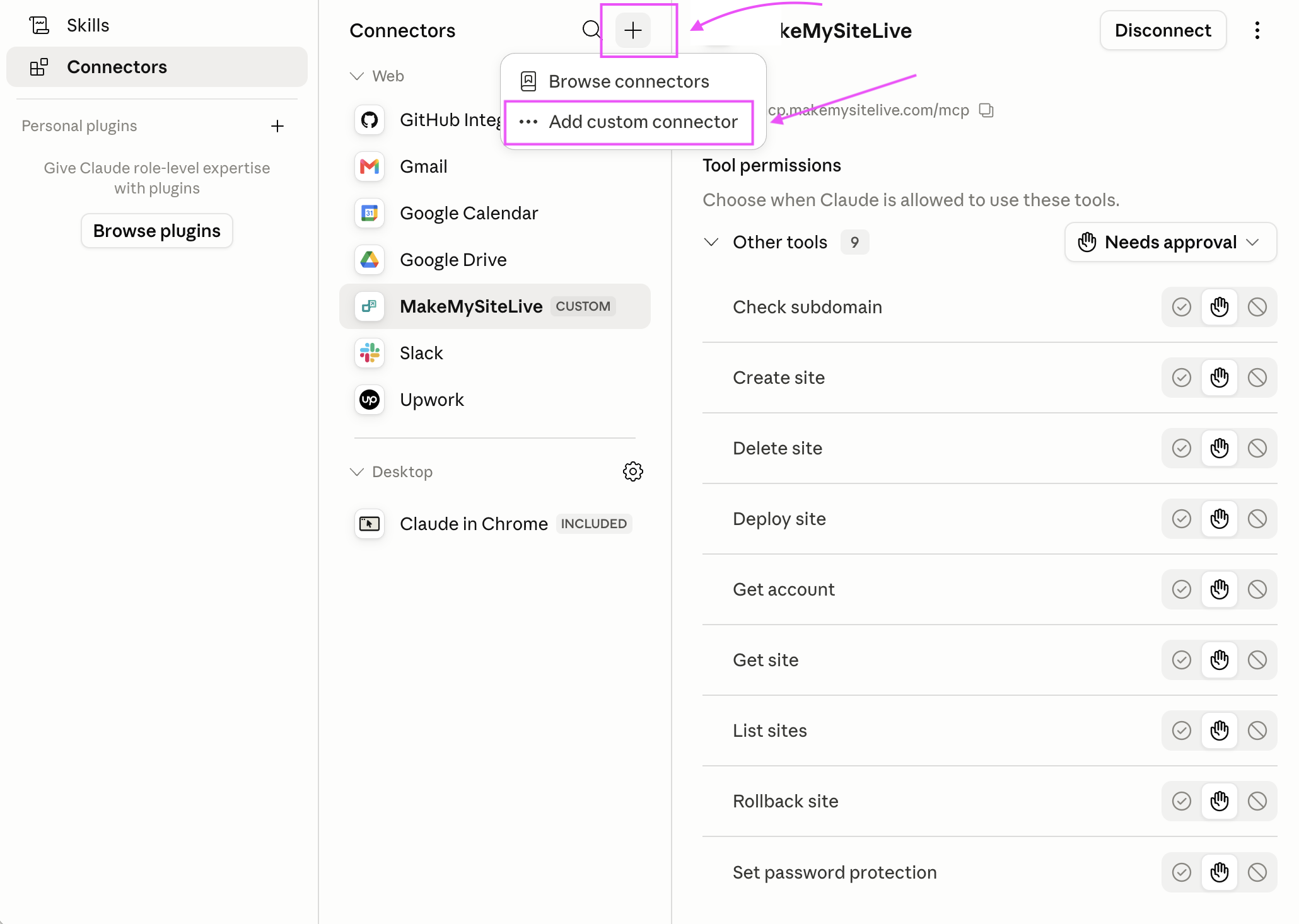
Click + and choose “Add custom connector”
At the top of the Connectors list, click the + button and select Add custom connector.
- 3
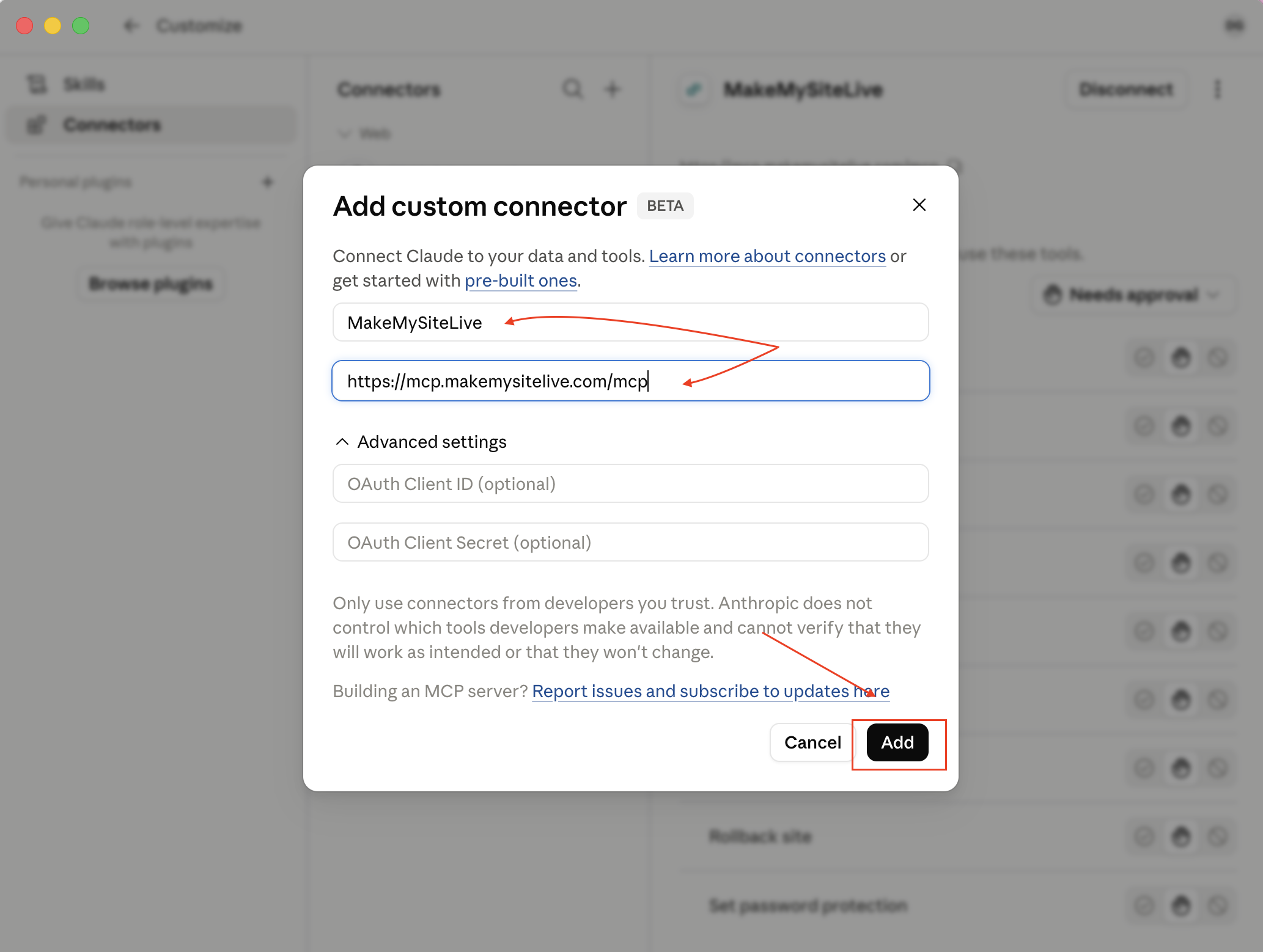
Paste the name and the MCP connector URL
For the name enter MakeMySiteLive, and for the URL paste https://mcp.makemysitelive.com/mcp. Leave the optional OAuth fields blank, then click Add.
- 4
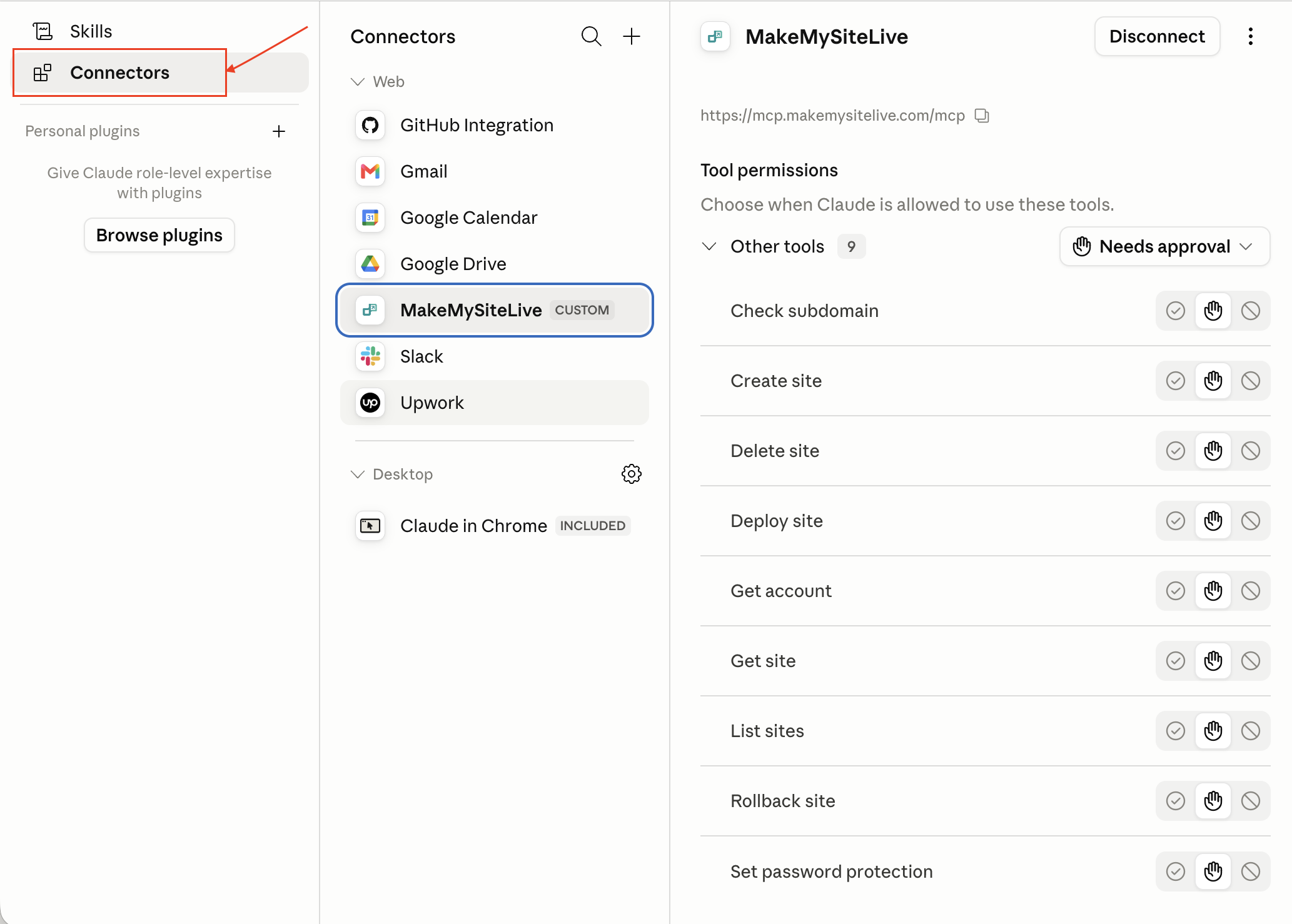
Sign in and approve access
Claude opens a MakeMySiteLive sign-in to authorize the connection (OAuth). Approve it so Claude can create and deploy sites on your behalf — it only ever acts as you, within your plan. Once connected, you can set each tool to run automatically or require approval.
- 5
Publish by chatting
Ask Claude to “publish this HTML as a microsite” or “create a site called my-demo and deploy this ZIP.” Claude checks the subdomain, publishes, and returns the live yourname.makemysitelive.com URL — no dashboard needed.
- 6
Manage everything from chat
Ask Claude to list your sites, roll back to a previous version, check whether a subdomain is free, or turn on password protection for a Pro site — all without leaving the conversation.
Frequently asked questions
What is the MCP connector URL?
The MakeMySiteLive MCP server is hosted at https://mcp.makemysitelive.com/mcp. Paste that single URL into Claude’s Add custom connector dialog — there is nothing to install or run locally.
Which AI tools work with this?
Any MCP-compatible client. Claude (claude.ai and the desktop app) is the common case, and other MCP clients work too. You add the connector once and the agent gains tools scoped to your account.
What can Claude actually do?
Read actions: see your account and plan, list full sites and microsites, view a site’s versions, and check subdomain availability. Write actions: create a full site, publish a single-file microsite, deploy a ZIP, roll back a version, set password protection, and delete a site.
Is it safe to connect?
Yes. The connection uses OAuth — you sign in with your own account and approve access, and the agent acts only as you and only within your plan limits. You can set each tool to require approval, and you can disconnect the connector at any time.
Do I still need the dashboard?
No — Claude can create, deploy, and manage sites end-to-end through MCP. The dashboard is always there when you want to do something by hand or manage billing.
Related guides
More: all guides · comparisons · pricing