
Guide
Publish websites from Cursor with the MCP connector
Last updated: 17 September 2026
MakeMySiteLive runs a hosted MCP (Model Context Protocol) server, the same one Claude and ChatGPT use, so Cursor's agent can publish and manage your sites too — create a site, deploy a ZIP, publish a single-file microsite, roll back a version, or set a password, all without leaving your editor. There is nothing to install. Add one connector URL, sign in once, and Cursor works within your own plan. The whole setup takes under a minute.
What you’ll need
- ✓A MakeMySiteLive account (the first full site is free, and microsites are unlimited — no credit card).
- ✓Cursor with MCP support (any current version). Other MCP clients work the same way.
MCP connector URL
https://mcp.makemysitelive.com/mcpSteps
- 1
Open Customize in Cursor
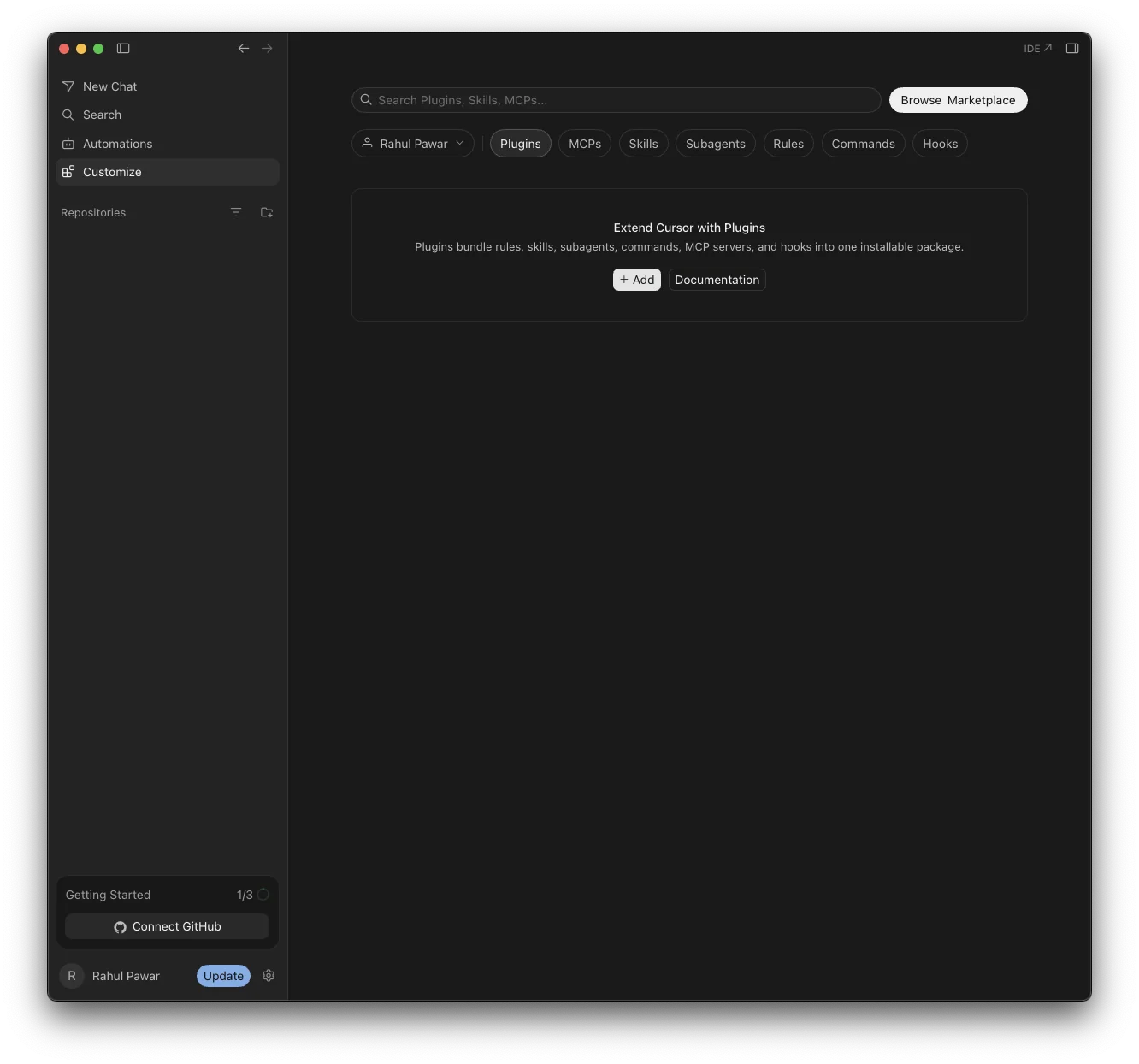
In the Cursor sidebar, click Customize (just below Automations). This is Cursor's shared home for Plugins, MCPs, Skills, Subagents, Rules, Commands, and Hooks — MCP servers used to live under Settings, but Cursor moved them here.
- 2
Open the MCPs tab and click + New
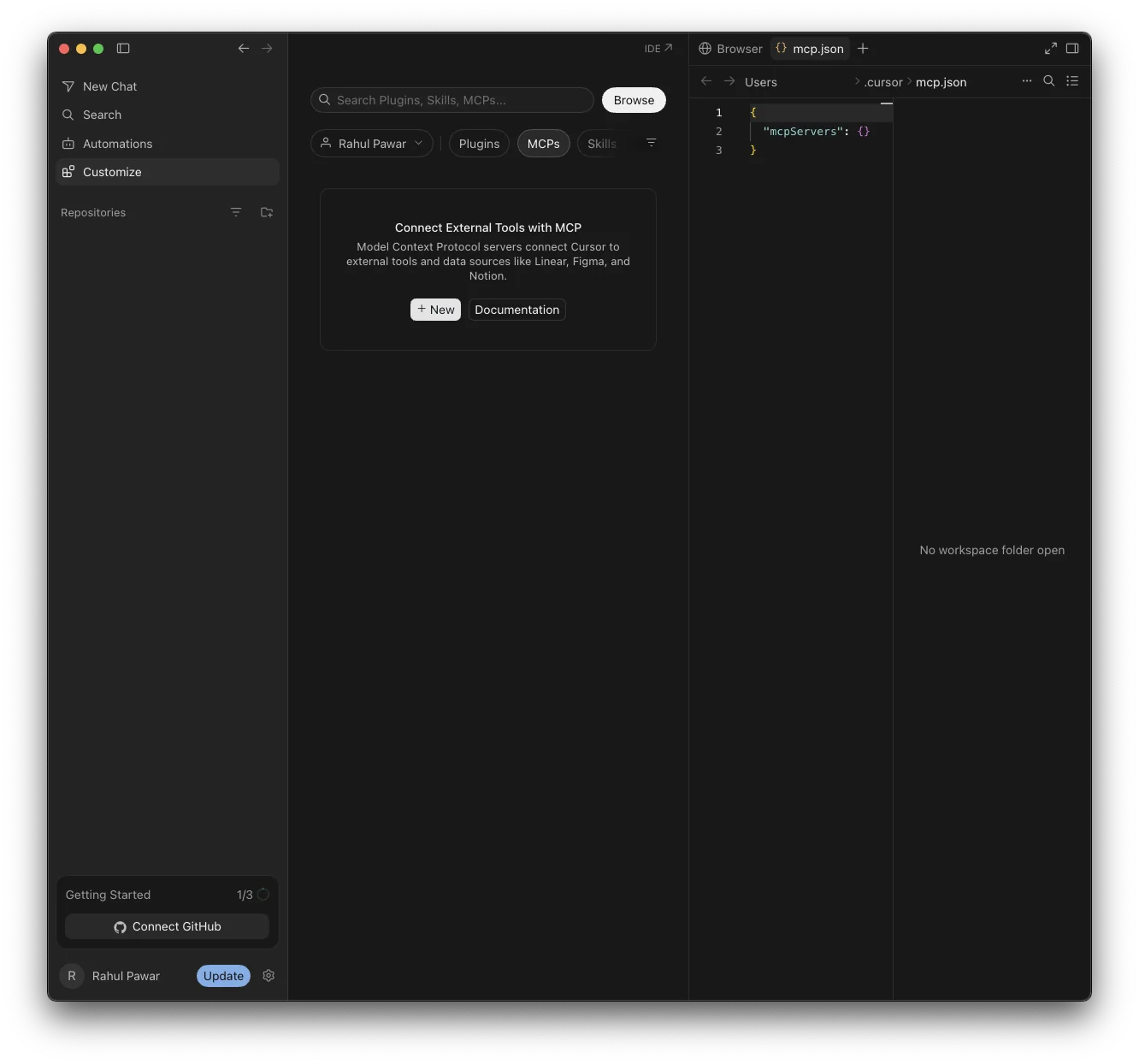
Switch to the MCPs tab, then click + New. This opens your mcp.json file in the editor — by default the global one at ~/.cursor/mcp.json, available in every project — with an empty mcpServers object ready to fill in.
- 3
Add the MakeMySiteLive server
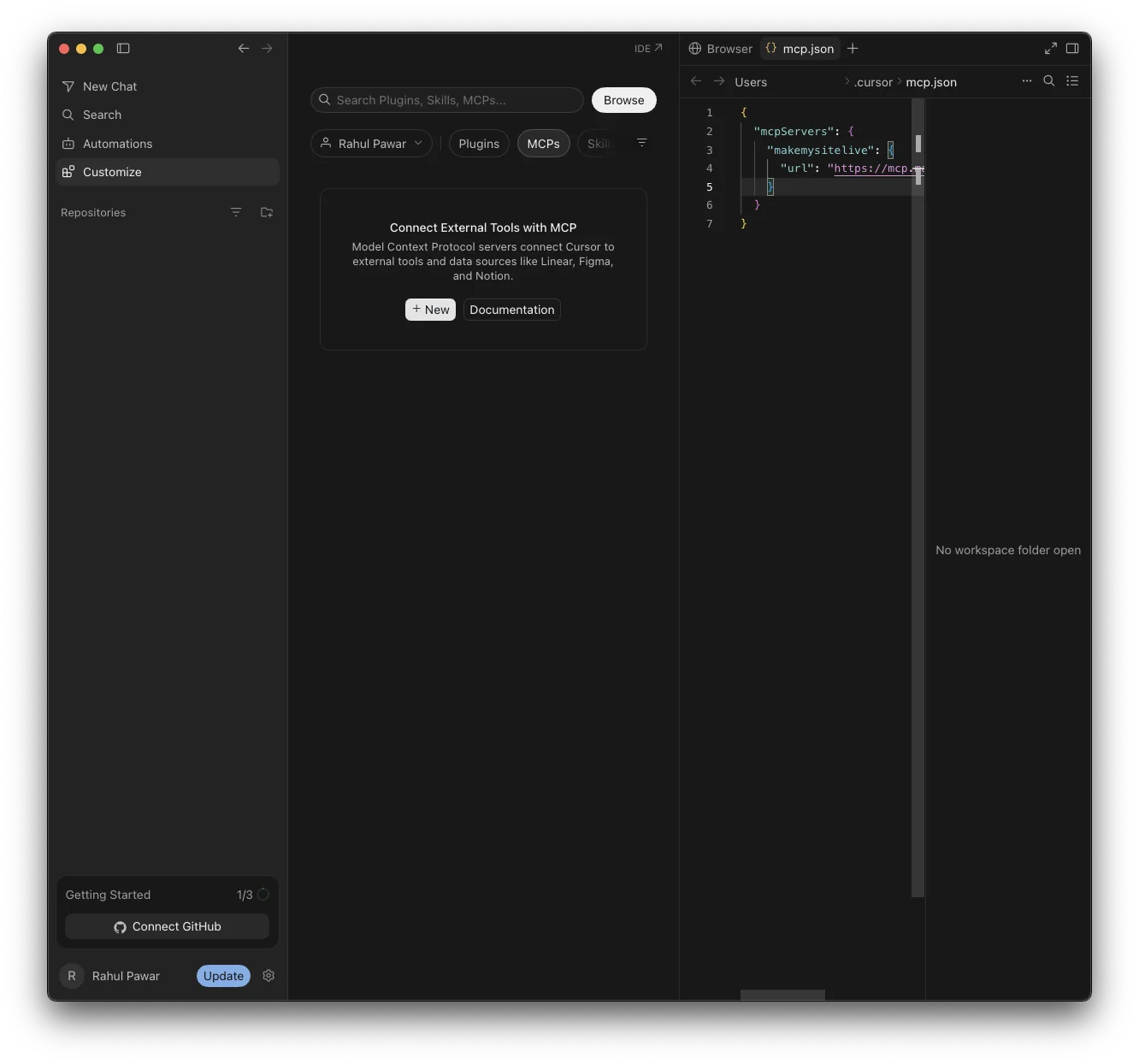
Add an entry under mcpServers:
- Name
- makemysitelive
- url
- https://mcp.makemysitelive.com/mcp
Save the file — no client ID or secret needed.
- 4
Authenticate the server
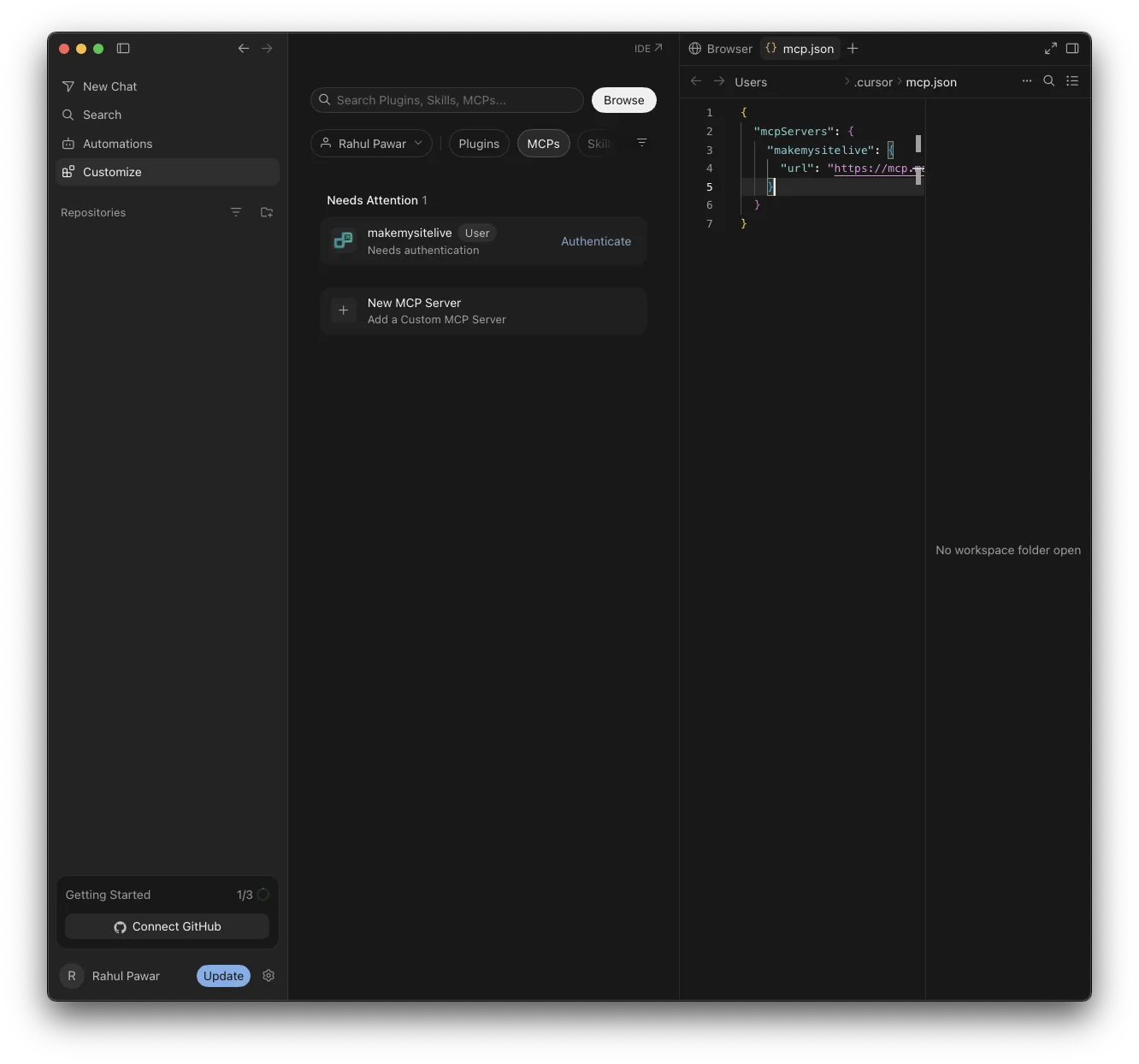
Back in Customize → MCPs, makemysitelive now appears under Needs Attention with a Needs authentication badge. Click Authenticate to run the MakeMySiteLive sign-in (OAuth) and approve access — it only ever acts as you, within your plan.
- 5
Publish by asking the agent
Ask Cursor to “publish this folder as a live site” or “create a site called my-demo and deploy this build.” It checks the subdomain, publishes, and returns the live yourname.makemysitelive.com URL — no dashboard needed.
- 6
Manage everything from the agent
Ask Cursor to list your sites, roll back to a previous version, check whether a subdomain is free, or turn on password protection for a Pro site — all without leaving your editor.
Frequently asked questions
What is the MCP connector URL?
The MakeMySiteLive MCP server is hosted at https://mcp.makemysitelive.com/mcp. Add that single URL to your mcp.json — there is nothing to install or run locally.
Which Cursor setups work with this?
Any MCP-compatible Cursor install. The steps above add the connector to your global mcp.json (~/.cursor/mcp.json), so it's available in every project you open, not just one.
What can Cursor actually do?
Read actions: see your account and plan, list full sites and microsites, view a site's versions, and check subdomain availability. Write actions: create a full site, publish a single-file microsite, deploy a ZIP, roll back a version, set password protection, and delete a site.
Is it safe to connect?
Yes. The connection uses OAuth — you sign in with your own account and approve access, and the agent acts only as you and only within your plan limits. You can set each tool to require approval, and you can remove the connector from mcp.json at any time.
Do I still need the dashboard?
No — Cursor can create, deploy, and manage sites end-to-end through MCP. The dashboard is always there when you want to do something by hand or manage billing.
Is this different from Claude's or ChatGPT's setup?
Only in where the settings live. All three use the same MCP connector URL and the same MakeMySiteLive account; Cursor calls it an MCP server under Customize → MCPs, configured via mcp.json instead of a graphical connector dialog.
Related guides
More: all guides · comparisons · pricing